Log in



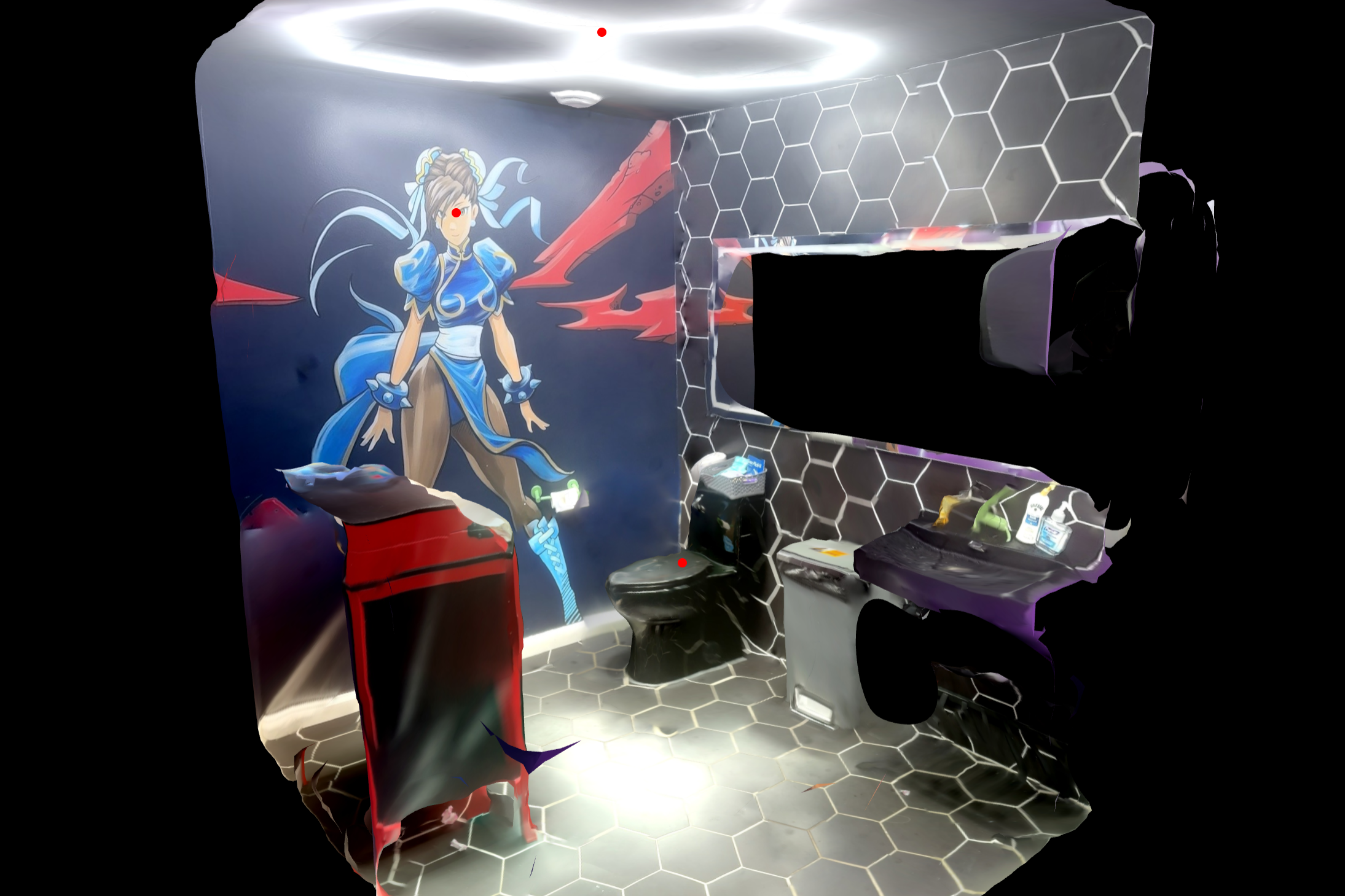
For the last three years Jake Welch has been 3D scanning public restrooms and archiving their peculiarities on a website called The Restroom Archive. “It started as a joke,” Welch, the site’s creator and head archivist, told 404 Media.
The Restroom Archive describes itself as “an ongoing repository of publicly accessible restrooms.” When someone first visits the Archive, the site serves them a random 3D scan of a public restroom, its location, and a brief written description. Hurricane, Utah’s Gypsy Emporium Antique Mall, for example, was scanned on April 11, 2026 and features paintings of a squirt gun on two of its four walls. “This restroom is accessed by passing through the antique mall through a back hallway and through the door of a jail cell,” the description says.
The renders are created with smartphone photogrammetry apps like Polycam which take hundreds of photos of an area and stitches them together to create a 3D environment. The results are imperfect. The rooms appear to run at the seams as if they’re built from wax and the tech has trouble with reflective surfaces, sometimes rendering mirrors as an abyss. There’s often a blank spot or warp in the render where the person who took the photos has been marred out of the scan. Sometimes the process captures a shoe or bit of arm which ends up in the final render unattached to a human.
The brief descriptions and imperfect scans make the Archive uncanny, but also funny. “I had just discovered Polycam for the first time, and went out with friends one night, staying out late. We went to an IHOP, and I kind of started to scan the restaurant as a joke,” Welch, a freelance designer in NYC when he’s not scanning restrooms, told 404 Media.
A month later, he scanned a bathroom restaurant while out with his wife. “I came back and we were just laughing at how funny of an idea that was and I kind of just kept doing it,” he said.
After scanning the restaurant, Welch went on a road trip with friends and scanned all the restrooms he hit along the way. “After I had like five or six of them, I started noticing things that I liked about each of them. I was like: ‘I like that this one has this weird trash can from outside in the restroom,’ or ‘I love that this one has the hand dryer plugged into an outlet right below it.’ It was all of these things that I thought were just hilarious, but also kind of interesting,” he said.
“Some of them are scary. Some of them show their wear from the use of people passing through them. But some of them are really interesting and well-designed, well-decorated, or super eclectic,” Welch said. “Maybe this is the artist brain in me but I started to see them as storytelling. They very much reflect the culture of where they’re situated and the people that are using them.”
According to Welch, some of the most frightening restrooms are the ones he saw on road trips. “I feel like it’s always the ones that are on the highway as you’re passing through a truck stop. There’s the Minute Market in Washington, Utah. So grimy looking. Or ampm in Barstow, California. Sometimes in its bar where it’s just totally graffitied and worn. The mirror is completely covered, you can’t even see in it. They’re often scary,” he said.
Welch said he’d also observed vast regional differences in America’s toilets. I think it has a lot to do with suburban versus urban,” he said. “Most of my restrooms in Utah are quite spacious, or maybe a little bit more commercial because there's a lot of [chain restaurants] in Utah. Here in New York, all the restrooms are really small, really impromptu. Oftentimes, I'm scanning them in these tiny hole-in-the-wall restaurants where you have to walk through the kitchen to get to the back, and it's obvious that they don't let everybody use the restroom. So those ones are usually a little bit more decrepit, a little bit more neglected, or sometimes they use them like storage rooms, a little bit more multifunctional because space is tighter in New York.”
After three years of scanning the restrooms and uploading them, Welch decided to overhaul the Archive and open it up to public submissions. “There are submission agreements that they have to abide by, but they're really loose,” he said. “It's it's things like just making sure that the scans are quality, making sure that they're not scanning anything too terrible or too gross because I have to vet all of them before they're posted, or, you know, making sure that people aren't trespassing or aren't scanning private residential restrooms or anything like that.”
Most Android and iOS smartphones can handle scanning a bathroom, but Welch preferred his iPhone. “If it’s a pro model, it has lidar, which uses lasers in your phone to measure distance,” he said. “I don’t even know why they have that. It feels like the use cases are kind of limited, but for me, it’s like I can’t get any other phone besides a pro model anymore because I like the lidar too much for bathroom scanning.”
There’s better methods of scanning that would create cleaner and more accurate visions of the world’s bathrooms. “I’ve had a lot of people in the comments in some of my videos saying that I should use Gaussian splats, which are a newer technique for making 3D models, and they’re a lot higher fidelity,” Welch said. “It’s built up with these blurry-looking point clouds, and they’re a little bit more crisp. But I kind of like this aesthetic of the blobby, stitched together photogrammetry. It kind of feels like it’s befitting of the space.”
He also liked the strange abysses the iPhone makes. “Another aspect of the lidar, since it’s lasers, when it bounces off a reflective surface you get really weird artifacts. So that’s why, if you look at a lot of the scans, a lot of the trash cans or a lot of the mirrors, they get really really wacky. So I think that’s fun,” he said.
When he set out to redesign the site a few weeks ago, Welch said it was important that he take it as seriously as possible. The contrast between the strange subject matter and the serious archive was important. “I started doing a lot of research on real life internet archives used by museums, libraries, and also just started doing research on public bathroom signage, and started to pull together these conventions to design a new website,” he said. “And part of that was the descriptions [...] there's something about the subject matter being so funny and humorous and taboo that made me want to completely steer away from that and take the archive 100% seriously.”
The redesign, and a viral Instagram reel, drove traffic to the Archive and submissions started to come. “I’ve had a few from around the world. I had one in Dublin that’s a typical tavern-pub bathroom, but in the description they said that the walls were covered with tags of left-wing groups and soccer clubs,” he said. “To my untrained eye, as an American, I wouldn’t have known.”
And, of course, there were new and different kinds of scary public bathrooms. “The very first user-submitted submission was in the basement of the Tri-Cities airport in Tennessee and it had been completely gutted. It’s just a dirt room,” he said. “I opened it up and I’m like, ‘what the hell am I looking at?’ And then I notice in the corner, like the ghost of an imprint of a urinal with the plumbing still attached. I'm like, ‘oh my God, this is a restroom.’ It was such a left field submission, but it was honestly kind of validating to me of why I should open it up to the public.”
Welch told me he envisioned a future where bathroom scans poured in from around the world “It's cool to see new restrooms. I'm hoping that it gets attention in other parts of the world where maybe restroom designs are different,” he said.
Then he told me about a hole in his archive. “Sign up to be an archivist,” he said. “We need your scans in South Carolina.”